
Your restaurant has printed table tents, but the menu URL has changed. Whether you can edit a QR code destination without replacing those tents depends on how the code was created.
The printed code can look the same even when the page it opens needs updating. Knowing whether it is dynamic or static helps you decide what to change and whether reprinting is necessary.
This guide explains how redirects work, when changing a destination is useful, and how to update and test a dynamic code. Follow the steps to keep printed materials linked to current information.
Key Takeaways
- Identify whether the printed code is static or dynamic before planning a destination change.
- Use an editable redirect to keep QR codes for printed materials in service when a menu, event page, or business location changes.
- Update the saved destination behind a dynamic code, then scan the printed image to confirm it reaches the intended page.
- Plan where each printed code should lead after a campaign or event ends, rather than leaving visitors at an outdated page.
- Use scan analytics to understand when and where printed materials are getting attention.
What Is an editable QR Code?
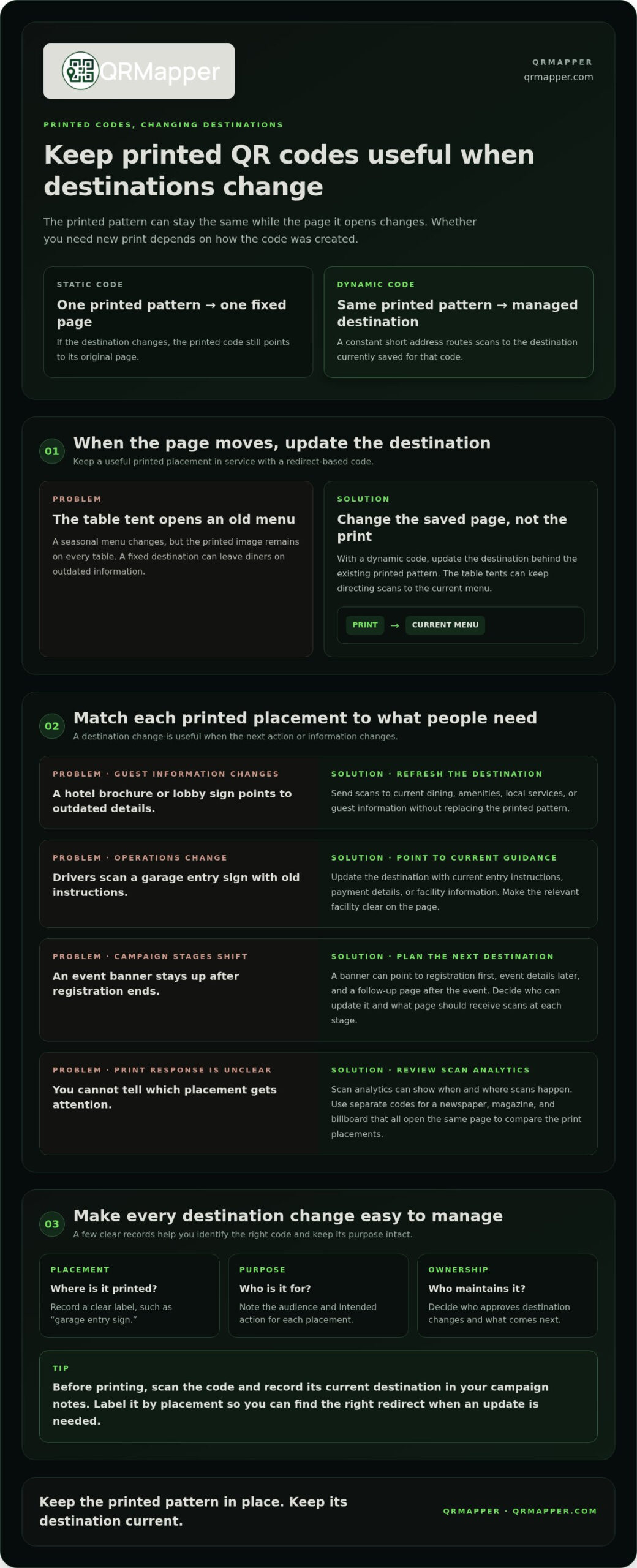
Yes. A dynamic QR code can open a different destination without changing its printed pattern. The pattern points to a redirect, which sends scans to the destination currently saved for that code.
- Choose a redirect-based code for materials that may need updates. A dynamic code uses a constant short address in its pattern, then routes scans to the destination you manage. If your restaurant prints a table tent, you can keep its QR image while changing the menu page behind it. The printed square remains a stable entry point, rather than a permanent link to one webpage.
- Keep the printed image connected to a page you control. When a seasonal menu changes, update the saved destination instead of recreating the code. The same approach works for a hotel brochure whose booking page changes or a yard sign that needs to point to a property listing. A managed destination keeps printed materials useful through routine updates.
- Use scan records to understand how print performs. A dynamic code can provide scan analytics, including when and where scans happen. For example, a marketing lead can compare scans from separate newspaper, magazine, and billboard codes that open the same page. That information connects a physical placement with its response, giving the team evidence to guide the next campaign.
- Plan for the next destination before the current page changes. A redirect gives you room to respond when a page moves, an event ends, or a promotion changes. An event banner might point to registration first, event details later, and then a follow-up page. Decide who can update the saved destination and which page should receive scans at each stage.
Tip: Before printing, scan the code and record its current destination in your campaign notes. Label it by placement, such as “garage entry sign,” so you can identify the right redirect when an update is needed.
Dynamic QR codes can be linked with Google Analytics to bring their insights into a broader digital strategy. Use this connection to inform planning, not as a substitute for deciding what the campaign should achieve. Before launch, identify the question you want the insights to help answer, such as whether a printed placement merits continued attention or a different role. Keep that purpose in view when reviewing the information, so observations lead to decisions rather than data gathering without a next step.
Make review part of campaign planning by setting aside time to consider what the insights suggest and whether to follow up. Record the placement and the decision made to give later reviews useful context. If your team manages several printed materials, use consistent labels for each placement in internal records. That makes it easier to compare campaign activity and discuss where to focus effort. The goal is not simply to connect a code to a measurement tool. Use relevant insights thoughtfully alongside the campaign’s purpose and destination, then decide whether the current approach still fits.
Use cases: When and why would I change the destination of my QR code?
Change a destination when the next useful action for a scanner changes. The printed placement can remain in use while its role shifts with your business, audience, or campaign.
- Refresh hotel and hospitality information when services change. A guest directory or lobby sign might link to dining, amenities, or local services. If a restaurant changes its hours or a hotel updates guest information, direct scans to the current page. Review the destination whenever the printed material will remain visible longer than the information it contains.
- Route retail displays to the right product information. A shelf sign can direct shoppers to care instructions, product details, or available options. If a product is replaced or a page is reorganized, update the destination so the display still supports the item beside it. Keep the linked page focused on that product rather than sending shoppers to a broad catalog.
- Adapt venue signage to changing visitor needs. A sign at an entrance might first provide arrival guidance, then link to accessibility information or facility details. Choose the destination according to what people need at that point in their visit. If the sign serves several audiences, make sure the page offers a clear path to the information each group expects.
- Keep agency campaign materials aligned with current creative. A trade show handout may introduce a campaign, while the campaign page changes as the message develops. Update the destination when the handout’s original page no longer reflects the current offer or next step. If several teams share the material, record who approves future changes and which audience the page serves.
- Redirect parking information when operations change. A garage entry sign can lead drivers to current entry instructions, payment details, or facility information. If a route or process changes, update the destination before drivers encounter outdated guidance. Confirm that the page identifies the relevant facility and clearly explains the action on a phone, especially for people scanning as they arrive.
For each placement, record its audience, intended action, and person responsible for keeping the destination current. Those notes help your team decide whether a change is necessary and prevent a useful sign from becoming detached from its purpose. A managed QR workflow can help keep destination changes organized across printed campaigns.
Location-based codes need review when a business location changes. Update the destination when a business moves or opens new branches. Before making the change, decide whether scans should guide people to the relocated business, help them choose among locations, or provide directions to a particular branch. Keep the destination relevant to the printed placement and its audience.
Review signs, packaging, and campaign materials that point to a former location, then update the destination for codes still in circulation. If a code serves multiple branches, make the next step clear so customers can identify the right location. Assign responsibility for reviewing location details and testing the destination after an update. This keeps the link between the printed code and the intended place or branch clear.
How QR code destination redirects work
A redirect adds a managed destination between a printed pattern and the page a visitor sees. Follow the scan from the camera to the landing page to understand what changes.
- Encode a stable redirect address in the QR pattern. A dynamic code contains a short URL, not the final page address. When someone scans a menu, the phone reads that short address and requests it. The printed pattern stays the same because it points to the redirect address, not directly to the restaurant’s current menu page.
- Let the redirect service match the code to its destination. The service receives the scan request and looks up the destination saved for that code. If a hotel brochure code is assigned to a booking page, the service routes the visitor there. Keep a clear record for each code so your team can match destinations to printed placements.
- Change the saved destination when the visitor’s next step changes. Updating the destination changes the redirect’s instructions, not the QR pattern. An event banner might lead to registration before the event, then to an event summary or a future event page afterward. The banner itself does not need to change.
- Check the final page as well as the redirect setting. A redirect may point to the intended address while the page still displays outdated details or fails to load. Open the destination directly and review its content before saving the new link. For a parking sign, confirm that payment or access instructions match the location and are easy to understand on a phone.
- Scan the physical code after saving an update. Use a phone camera on the printed material, not just a preview of the digital image. Confirm that the scan opens the intended page and that the page shows the updated information. If the code appears on a garage sign and a visitor handout, test both.
- Use scan records to assess the result. A managed redirect can report scans by time and location, helping you see how printed placements perform. For example, compare activity before and after directing a trade show handout to a new follow-up page. Treat those records as evidence of scans, then review the page itself to understand whether it serves the visitor’s purpose.
The redirect controls the route after a scan; the printed code remains the entry point. Clear labels, a current destination, and a scan test using the physical code help keep the route understandable for your team and visitors.
Static versus dynamic QR codes
The key difference is what the QR pattern contains. That determines whether a printed code can point to a new destination later.
-
Find Generators With Editable Destinations
Choose a service that creates dynamic QR codes with a saved redirect you can manage. Look for destination-editing controls in the code’s account or dashboard, not just an option to download an image. A static code embeds the final page address in its pattern. A menu code made this way cannot be redirected when the menu page changes.
-
Edit Destinations After Printing
Identify whether the printed code is dynamic before trying to change its destination. A dynamic code routes through a constant short URL, so you can update the saved destination without changing the pattern or reprinting the image. A static code stores its destination URL directly in the pattern, so changing the webpage does not change where the code points.
You can edit a dynamic code after printing, but not a static one. For example, you can redirect a dynamic code on a hotel brochure to a revised booking page. A static code on the same brochure still points to its original encoded address, even if your team changes the brochure’s online content elsewhere.
- Review the service terms for a dynamic code before relying on it. Dynamic codes depend on the redirect service continuing to route scans. If a subscription expires, the code may stop working if that service disables its redirect; it may continue if the service keeps the redirect active. The outcome depends on the platform’s account and service terms, so plan for continuity before printing a yard sign or event banner.
- Match the code type to the likelihood of future changes. A static code may suit a stable page address you expect to keep, such as a permanent public resource. Choose a dynamic code when a table tent, parking sign, or campaign handout may need to point to a different page later. Dynamic codes can also provide scan analytics, while a static code alone does not provide a managed redirect.
Before printing, scan the code and check whether it opens the final page directly or a redirect address. That distinction tells you whether you can change the destination behind the existing image.
Steps to update a QR code destination
To edit a QR code destination, update the saved redirect for the dynamic code, then test the printed image. A restaurant can use these steps to send table tent scans to its current menu.
After changing the saved destination, scan the physical code with a phone camera and confirm it opens the intended page. Review the page on the phone, too, and check that its details match the printed material.
- Find the correct code record. Sign in to the account that manages the dynamic code and locate its entry. Match the record to a physical placement, such as “Main table tent” or “North garage entry sign.” If a campaign uses separate codes for different channels, select the right one before making changes. This helps prevent a billboard or handout from leading visitors to an unintended page.
- Choose the destination visitors need now. Open the replacement page and review it before updating the code. For a restaurant, confirm the current weekly or seasonal menu is shown. For an event banner, choose a destination suited to the event’s stage, such as registration information beforehand or a follow-up page afterward.
- Replace the saved destination. In the selected code’s settings, enter the new destination address and save the update. Keep the existing code record instead of creating a replacement image. When you edit a QR code destination this way, the redirect changes while the printed pattern stays the same.
- Check the address and page details. Review the saved address for errors, then open it in a browser. Confirm that the page’s title, location, offer, and instructions match the printed material. A garage entry sign should lead to information for that facility. A brochure should not direct readers to a campaign page that no longer serves them.
- Test the printed code in its real setting. After saving, scan the actual table tent, sign, or handout with a phone camera. Confirm it opens the intended page and that the content is clear on a phone. If the code appears on different materials, test a sample of each format and placement.
- Record the change for your team. Note the code’s placement, new destination, and reason for the update in campaign records. If a colleague manages the menu or event banner, share the change so future edits start from the right record. These notes can prevent confusion between similar codes during later updates.
For printed campaigns that need managed redirects and scan records, manage your QR destinations from a central workflow.
QRMapper: QR Code Management
QRMapper helps teams manage printed QR codes, review scans, and keep destinations current. Its QR Code Management and analytics show scan timing, device type, browser, and country, using anonymous daily hashes with no personal data stored. These insights help a marketing lead review how a yard sign, brochure, or event banner performs.
Use QRMapper when printed materials need more than a fixed destination. A restaurant can update a table tent’s menu link; an event team can direct a banner to the next phase. The printed code stays in place while its destination is managed. Use separate tracked codes for different campaign placements and review their scan reports alongside your campaign goals.
If your printed codes need ongoing management and measurement, visit QRMapper to explore the service and create your first codes.
Build destination ownership into your print plan
A printed QR code needs an owner, not just a destination. Before the next campaign goes to print, decide who can approve changes, which team maintains the linked page, and where scans should go when the campaign ends. That handoff helps prevent a useful redirect from becoming ownerless.
When you edit a QR code destination, include the change in the lifecycle of the printed material. Record why the route changed and who is responsible for reviewing it next. For a yard sign, confirm the listing is still active. For a venue banner, choose the next visitor action after an event. Clear ownership makes occasional updates a repeatable practice.
QRMapper can support teams that want to bring their printed codes and destination decisions into a more managed workflow. Contact QRMapper for help with the next step. Your printed materials can keep serving a clear purpose as your plans change.
Frequently Asked Questions
How does it work?
A dynamic QR code sends each scan through a short redirect address before opening its destination. The redirect service looks up the page assigned to that code and routes the scanner there. For example, a code on a product insert can lead to current setup instructions. The redirect address stays consistent, while the assigned page can be changed separately.
Can you change the destination of a static QR code?
No. You cannot change the address encoded in a static QR pattern. If the code points to a page on a domain you control, you may be able to update the content at that same address, but the encoded destination remains fixed. If the address itself needs to change, create a replacement code and update the printed materials carrying the old one.
Review our guide to fixing printed QR codes and explore QRMapper with a 14-day free trial.