
A printed QR code shouldn’t go silent after it leaves the printer. A dynamic QR code with analytics tracks scans through a redirect link, so you can review activity and change the destination without replacing the code.
That distinction matters when a yard sign, table tent, or event banner is already in use. A static URL code encodes a fixed address; the owner may still edit that page or configure a server redirect. If neither route is available, a moved page can leave printed codes pointing to an error. A dynamic code keeps the printed pattern in place while letting you manage where each scan takes visitors.
Here’s how scan tracking works, what analytics can reveal, and how to interpret the data without mistaking a scan for a sale. You’ll also learn how dynamic and static codes differ, how to update a destination, and how scan activity can inform campaign measurement. The aim is to understand what your printed materials are doing and keep them useful as plans change.
Key Takeaways
- Use a trackable code to see scan activity, then connect it to campaign outcomes before judging performance.
- Choose between a fixed encoded URL and a managed redirect based on the control, reporting and maintenance your campaign needs.
- Review scan patterns by time and location to understand when and where printed materials are getting attention.
- Compare distinct codes for different channels to see which placements are drawing scans.
- Update a dynamic code’s destination when a page or campaign changes, without replacing the printed code.
How do I track QR code scans?
Create a dynamic QR code by assigning it a destination, then review scan activity in an analytics dashboard. Because the code uses a redirect link, you can track scans and change the destination without replacing printed materials.
Setting Up Scan Tracking
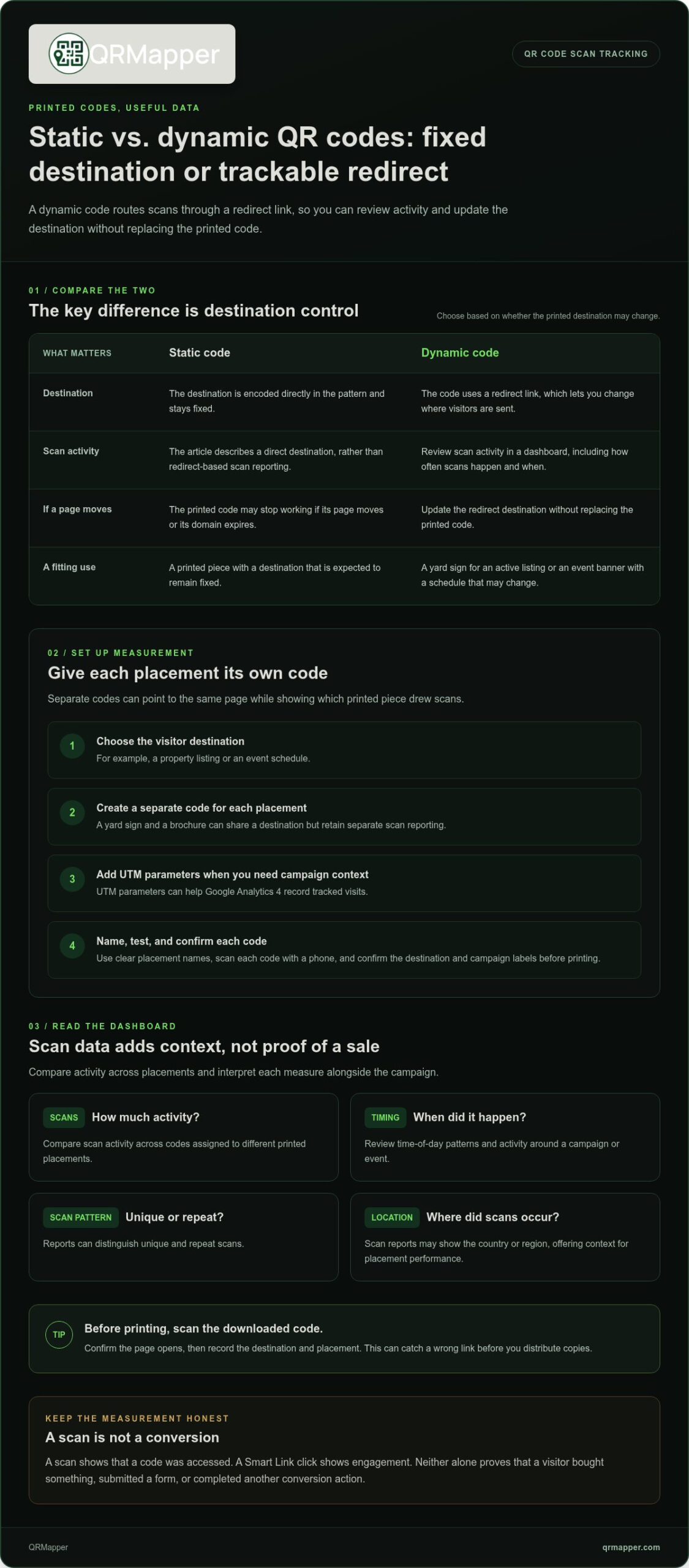
Start by matching each trackable code to one campaign placement. A yard sign and a brochure might lead to the same property page, but separate codes show which printed piece drew scans. A dynamic code routes through a redirect link, enabling scan tracking and later destination updates.
- Choose the page visitors should reach, such as a property listing or event schedule.
- Create a separate code for each placement you want to compare.
- Add UTM parameters to the destination link when you want Google Analytics 4 to record tracked visits.
- Test each code with a phone, then confirm the destination and campaign labels.
Use clear names such as “yard sign” or “event banner” for campaign records. Consistent labels make the dashboard easier to interpret when several printed materials share a destination. Keep each destination relevant to its placement: a restaurant table tent should open the menu, not a general homepage.
Reviewing Scan Metrics and Campaign Performance
A scan dashboard helps you review how often a code was scanned and when activity occurred. Depending on the platform, QR code analytics can show unique/repeat estimates, time patterns and approximate network-based location. These are report categories, not identified people or precise physical scan positions. Read each measure in context: a scan shows that a code was accessed, not that a visitor bought something, submitted a form, or completed another conversion action.
- Scans: Compare scan activity across codes assigned to different placements.
- Timing: Look for periods of activity around a campaign or event.
- Link clicks: Treat clicks on a tracked link as engagement, not proof of a completed sale.
For campaign performance tracking, compare like with like. A billboard code and a magazine code can point to the same page while retaining separate tracking, making the medium behind each scan visible. UTM parameters can add campaign context to visits recorded in Google Analytics 4.
Use the results to guide a specific decision. If a trade show handout gets scans but the linked page receives few inquiries, review the page’s next step. If activity appears at an unexpected time, compare it with the placement and distribution schedule before changing your plan.
Review QRMapper scan activity in the dashboard, allowing for reporting updates and filtering. Neither scans nor link clicks alone prove a purchase or another conversion.
Dynamic versus static QR Codes
A static URL code keeps the encoded address fixed, although its page content or a server redirect can change. A dynamic code routes through a managed redirect whose destination you can change. Dynamic codes can also record scan activity, making them useful when a printed campaign needs both measurement and ongoing control.
The main security and privacy risks involve control of the redirect and the information collected during scans. If someone gains access to a dynamic code’s management account, they may change its destination. Scan reports provide context, but they don’t identify the person holding the phone or track that person continuously.
With a static code, the destination is encoded directly in the pattern. For example, a restaurant menu code keeps pointing to the original menu address. If the page moves or the domain expires, the printed code may stop working. A dynamic code uses a redirect link, so you can update its destination without replacing a table tent or brochure.
Creating and preparing a code is a straightforward sequence:
- Choose static or dynamic based on whether the destination may need an update.
- Enter the destination, such as a menu, property listing, or event schedule.
- Name the code for its placement, such as “garage entry sign” or “trade show handout.”
- Download the code file, then test it on a phone before sending the design to print.
A dashboard can help organize dynamic codes by campaign or placement. Keep each code name and destination clear: “spring event banner” is easier to manage than a generic label. If the destination changes, update the redirect and test the printed code again. The pattern stays the same, but the visitor’s next step can change.
GS1 Digital Link QR codes serve a different purpose from a basic campaign link. They can connect product identifiers to online information, allowing a product’s code to act as a route to relevant digital content. For a product package, consider whether the code should lead to product information, campaign content, or another destination, and keep the intended use clear.
Choose a code type based on how long the printed material will be used and whether its destination might change. A fixed brochure with an enduring destination may suit a static code. A yard sign tied to an active listing or an event banner with a changing schedule benefits from an editable destination. Separate codes can also distinguish channels that share a landing page.
Before printing: scan the downloaded code, confirm the page opens, and record the destination and placement. This simple check can catch a wrong link before you distribute copies.
Geographic, device, and time-based scan analytics
Scan patterns help you decide where a printed campaign deserves attention. A dashboard can organize activity by time and location, giving a marketing lead more context than a single total.
Dynamic QR platforms with analytics typically include a dashboard for reviewing scan activity. Depending on the platform, reports may show scan timing, location, and device context, helping you compare campaigns.
Scan analytics in the United States provide context, not a person’s identity. Reports do not identify the person holding the phone or continuously track that person; if a campaign adds forms or other data collection, consider those practices separately.
Location, device, and timing answer different questions. A hotel can compare separate codes assigned to its property and brochure placements; approximate network location alone cannot establish where the person stood. An event team can see whether a banner drew activity before the doors opened or during the event. Device information offers context on how visitors access the destination, while time patterns show when scans occur.
Use a consistent review process to find meaningful trends:
- Compare separate codes for placements such as a billboard and magazine ad.
- Review scan activity across the campaign period, not just one reporting moment.
- Look for repeated patterns by place, time, or device before changing a placement.
- Record the adjustment, then compare later activity against the earlier pattern.
“Unique scans” can help distinguish reach from repeated activity, but platforms may define or report the measure differently. Treat it as a platform metric and read its definition before comparing campaigns. A scan also doesn’t prove that someone purchased, submitted a form, or completed another conversion.
Free plans have different scan policies. QRMapper’s published Free plan includes unlimited scans. That does not override account status, security controls, destination availability or service operation. Its analytics history covers seven days, so check both the scan policy and data-retention period before choosing a plan.
Scan data can help a marketing team allocate attention more deliberately. If a trade show handout gets scans while a nearby banner gets few, compare placement, visibility, and destination relevance before shifting effort. Scan activity can guide the next decision, but it doesn’t replace conversion data from the linked page.
Where the reporting platform supports grouping, marketers can compare scan activity by campaign or placement. That capability can make a broad scan total more useful when a team needs to distinguish activity associated with different campaign audiences or placements. Keep each segment tied to a clear question, such as whether a particular distribution context is drawing attention, rather than treating a segment as proof of intent. A segment organizes scan activity; it does not, on its own, establish who a visitor is or what that visitor will do next.
QR Code analytics platforms can give marketers a real-time view of scan activity through a built-in dashboard. Teams can use it to see whether a change merits a closer look while a campaign is running, then review comparable segments over time. Interpret patterns in context, including placement and destination. When separate codes serve different audiences, compare like with like and record why each segment was created. That makes later reviews clearer and helps avoid mistaking a different grouping for a change in audience activity.
Location, device, operating system, browser, and language data
Scan reports can add context to activity totals from printed campaigns. Available location and device fields can help compare placements. QRMapper reports include scan time, device/browser context, country and unique/repeat estimates; these do not identify individual people. Use available details to guide practical changes to the linked experience.
Location and Scanner Device Data
Location data is approximate network context, not proof that a scanner was near a venue. VPNs, mobile networks and shared connections can affect the reported location; compare placement-specific codes rather than infer a precise physical position. Reports can also show device information to help you understand how visitors reached a destination.
For example, compare scans associated with an event banner near the venue with scans from a trade show handout distributed elsewhere. The contrast may help you assess placement, but it won’t identify who held the phone. Scan reports provide context, not continuous tracking.
Read location and device fields alongside the physical placement. A garage entry sign and a brochure may draw different audiences, even when both lead to the same page. Separate codes preserve that distinction in the report.
Operating System, Browser, and Language Data
Operating system and browser details describe the software environment used to scan a code. Language data can indicate a device’s language setting, which may help you assess whether a multilingual landing page or event guide would better serve visitors.
Use these fields to identify a practical usability issue. If visitors arrive through several browser types, test the destination in those environments. If scan reports show different language settings, consider whether the page offers relevant content in the languages your campaign serves. These fields describe device context, not a confirmed identity or a person’s preferred language.
For a useful review, tie the report to a decision:
- Compare location patterns with the sign, brochure, or venue placement.
- Check device and browser context against the page experience.
- Use language patterns to assess the destination’s content and navigation.
- Record the change you make, then compare later scan activity.
When a platform offers CSV exports, you can sort scan records in a spreadsheet by code, date, or available report fields. Keep code names consistent, such as “event banner” and “garage entry sign,” so exported records remain tied to real placements.
A CSV export can help combine scan records with campaign notes, but it doesn’t identify individual visitors. Preserve the distinction between observed scan context and conclusions about a person. A scan may suggest which placement or page needs attention, but it doesn’t establish a purchase or other conversion.
Dynamic QR code destination changes
A printed code may be used with a destination that can be updated. For a real estate yard sign, the same dynamic QR code can lead to updated property details without replacing the sign.
Make each change for a clear reason, and choose a destination that matches the printed message. A restaurant might replace a seasonal menu page with its current menu. An event team might switch a banner from registration information to the day-of schedule. The printed pattern stays the same while visitors reach the page that fits the campaign’s current stage.
Use a deliberate process before changing a live code:
- Identify the printed placement and the code’s current destination.
- Choose the new page, such as updated event details or a current listing.
- Update the redirect, then scan the printed code with a phone.
- Confirm the page loads and gives visitors the intended next step.
This sequence helps preserve the connection between the physical placement and its purpose. If a brochure still promotes one offer, redirecting it to an unrelated page can confuse visitors. Match each destination to the words and context printed beside the code, and review the landing page before routing visitors there.
Some campaigns need different destinations over time. A conference banner can lead to registration before the event, practical information during it, and follow-up material afterward. Scheduled redirects can align one printed code with those campaign phases. Configure and test QRMapper’s Safe Home fallback for the relevant code and destination conditions; do not assume it detects or fixes every unavailable page.
Destination control also makes it possible to adjust campaign choices. A hotel can send a lobby sign to a booking page, then update it to a seasonal offer. Separate codes for a newspaper ad and billboard can point to the same page, while scan analytics distinguish their activity. Keep placement labels and update notes consistent so later comparisons remain useful.
Before redirecting a code, consider who controls the destination and which page visitors should trust. Limit account access to the people responsible for campaign updates. For a time-sensitive offer, verify its availability and details on the landing page before directing printed traffic there.
Tip: Keep a change log with the code name, old destination, new destination, and reason. A note such as “event banner, registration page to arrival guide” gives teammates useful context when they review the campaign later.
After an update, let the people responsible for the printed placement know what changed. A sales team handling property inquiries or event staff assisting guests can then give consistent directions when someone asks where the code leads.
QRMapper: QR Code Management
QRMapper helps teams manage printed codes and understand what happens after each scan. If a yard sign, event banner, or menu needs an editable destination and scan reporting, QRMapper’s QR Code Management and analytics can support that work.
This approach suits teams whose printed materials stay in circulation as campaigns or destinations change. Review activity by placement, keep code records organized, and align destination updates with the next campaign step. Event teams can use scheduled redirects on the Business plan when printed information must change between campaign phases.
QRMapper focuses on continuity and measurement: the printed code remains in place while its destination can be managed. Your team can use that structure to keep printed campaigns aligned as their needs change.
Make your next printed campaign easier to steer
Start by deciding what each printed code should help you learn. Before sending a campaign to print, name the decision its scan data should inform, such as which placement deserves more attention or which destination needs revision.
A dynamic QR code with analytics can support this process when someone reviews the data and acts on it. QRMapper brings QR Code Management and analytics to teams connecting print with Digital Marketing. The value comes from applying these tools to a clear campaign purpose and maintaining that focus as materials remain in circulation.
Choose an upcoming placement, define the action its destination should support, and assign someone to review its performance. A deliberate process turns printed codes into useful parts of your marketing, not forgotten links.
Contact QRMapper about scan analytics, and take the next step with a clearer plan for your printed campaigns.
Frequently Asked Questions
What data can you see with QR Code analytics?
QRMapper reports can include scan time, device type, browser, country, and whether activity came from unique or returning visitors. Use those details to check practical issues, such as whether a menu page works across visitors’ devices, rather than treating report fields as a complete picture of campaign performance.
Can I see who scanned my QR code?
No. A scan report does not tell you the named person holding the phone. Analytics can involve technical device and network data, so review the privacy policy and applicable consent requirements. To follow up with a visitor, use a separate form that clearly requests contact details, such as an event inquiry form or property information request.
Can I change the link after printing my QR code?
Yes. You can change the destination through the dashboard while keeping the printed pattern in place. Before making the change, confirm that the replacement page suits the material and let any related teams know where the code now sends visitors.
Do my QR codes expire?
The printed pattern has no built-in expiry timer. A managed redirect still depends on the service, account, code settings and destination remaining available. The destination page can still be removed or become unavailable, so use a maintained page and update the destination when campaign content is retired.
What is the difference between total and unique scans?
Total scans include repeat activity. Unique scans are estimates under the platform’s counting rules, not verified people; they may not deduplicate the same person across reporting periods or devices. Compare both measures when evaluating a campaign: repeat visits to a venue guide may show continued use, while unique activity can help assess how broadly a new handout reached visitors.