
To copy decoded text from a QR code, scan it with a reader, then use the copy control or select and copy the displayed text. The code’s contents differ from QR scan data: one is encoded in the symbol, while the other describes recorded scan activity.
It’s easy to mistake every scan for a simple visit. Knowing the difference between encoded content and scan activity helps you copy text accurately, understand what a scan record can reveal, and make informed privacy decisions.
This guide explains how to decode and copy text, what scan records may show, and how to use timing and location patterns to assess a printed placement. The aim is to help you interpret both what a code contains and what its activity can tell you.
Key Takeaways
- Identify whether a code contains text, contact details, or a destination before deciding how to use its contents.
- Separate a phone’s local scan history from records held by a scanning service, and consider what each may reveal.
- Use caution with unfamiliar codes by reviewing the destination before continuing.
- Compare scan patterns across printed placements to see which locations and campaign channels merit a closer look.
- When printed codes need ongoing measurement and destination management, QRMapper’s QR Code Management and analytics can help keep that work organized.
Types of data encoded in QR codes
A QR code holds encoded content, not a record of who scanned it. That content may be plain text, a phone number, an email address, a web URL, or a file destination. For example, a restaurant table tent might open a menu, while a product label could display care instructions as text. What appears after scanning depends on the code’s contents and the reader used.
QR codes follow defined encoding rules. The International Organization for Standardization’s ISO/IEC 18004:2024 standard specifies encoding modes and error correction. Capacity depends on the data type and code version: a version 40 Model 2 QR code can hold up to 7,089 numeric characters, or up to 4,296 alphanumeric characters at error correction level L. These are maximum capacities, not a reason to fill a code unnecessarily.
Keep encoded content separate from scan records. A code might contain a URL, while scan records describe activity after someone uses it. Scan a code on a restaurant menu, for instance, and the decoded result may be the menu address. The page then loads separately in a browser and may contain more than the QR symbol itself.
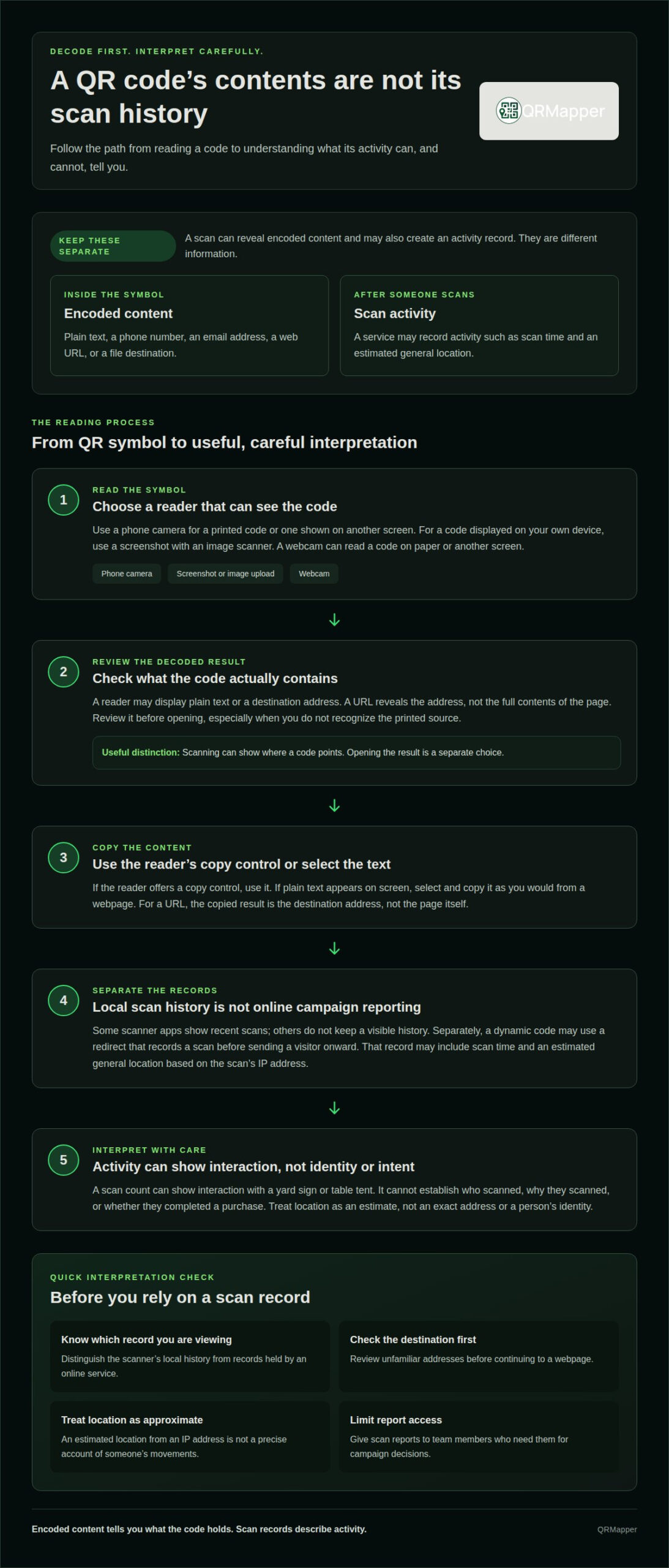
To copy decoded text, scan the symbol with a QR reader and use its copy control, if available. If the reader displays plain text, select and copy it as you would from a webpage. A code containing a URL displays the destination address, not the page’s full contents. Review the decoded result before opening it, especially if you don’t recognize the printed source.
An image-based scan is useful when the code is on the device you’re using. Save a screenshot or image, then upload it to an online scanner that accepts image files. If the scanner has a paste area, paste a copied image there. A screenshot of a QR code in a message gives the scanner an image to decode without a second camera.
A webcam is another option when a QR code is printed on paper or displayed on another screen. Select live camera scanning, allow camera access, and place the code clearly within the scanner’s frame. If the code is on your own device, upload a screenshot instead. A camera cannot easily scan the display it is part of.
For printed codes, a phone camera is often the simplest reader. The iPhone Camera app can scan QR codes on iPhones running iOS 11 or later. Most Android phones running Android 8 or later can scan them with the default camera app. Review the result before proceeding. Scan records concern activity, not the text encoded in the symbol.
Separating encoded content from scan records keeps your interpretation precise. A decoded URL tells you where the code points; analytics may describe when and where scans occurred. Neither alone proves what a visitor intended. Treat the content and recorded activity as separate information when assessing a printed placement.
Privacy and local scan history
A scan can leave traces in two places: on the scanning device and in an online service. These records serve different purposes. A phone’s scanner history might help someone reopen a scanned menu or ticket. Online scan records might help a campaign manager understand activity across printed placements. Neither record is the text stored inside the QR code.
Start with the scanner app. Some apps show recent scans, while others display a result without keeping a visible history. If you share a work phone, a saved scan to a staff portal, guest network, or parking payment page could be visible to the next user. Review the app’s history and privacy controls before scanning sensitive work materials.
Opening a displayed result is a separate choice from scanning. A scanner can decode a URL and show it for review before opening a browser. That pause lets you spot an unfamiliar domain or unexpected redirect. For example, a printed event ticket should lead to the event information you expect, not an unrelated sign-in page.
Online records work differently. A dynamic QR code can use a redirect URL that logs a scan before sending the visitor onward. The record may include the scan time and an estimated general location based on the scan’s IP address. This is not a precise account of a person’s movements and should not be treated as one.
For a business, the key question is what the record actually represents. A scan count can show interaction with a yard sign or table tent, but it cannot establish who scanned, why they scanned, or whether they completed a purchase. Don’t treat a device, estimated location, or repeat visit as a confirmed identity.
Use these distinctions when reviewing scan history:
- Separate locally displayed recent scans from analytics held by an online service.
- Read the destination before clicking, especially when a code appears on an unfamiliar handout.
- Interpret location as an estimate, not an exact address or a person’s identity.
- Limit access to scan reports to team members who need them for campaign decisions.
When you evaluate QR code management, consider which scan details support a real decision and which add unnecessary exposure. A clear boundary between local history and campaign reporting makes the data easier to interpret responsibly.
QR scan data security
Requirements for QR scan tracking can vary by state and by the information collected. The code itself doesn’t determine which requirements apply. Tracking practices and the data involved matter.
Security starts with the destination. A QR code can lead to a malicious website or a phishing page that imitates a familiar service. Before opening a result, inspect the displayed address and compare it with the expected destination. A trade show handout should lead to the event information visitors expect, not an unrelated sign-in page.
Scanning and opening are separate actions. A scanner may decode the destination and display it before loading a page. Use that pause to spot an unfamiliar domain, a misspelled organization name, or a request that doesn’t fit the printed material. The displayed address can help you assess a link, but it cannot prove the site is safe.
Tracking adds a step to the visitor’s path. A dynamic code can use a redirect URL that records a scan before forwarding someone to the destination. For example, a yard sign may send visitors through a measurement service before opening a property listing. Review what the tracking feature records and who can access its reports.
- Match the destination to the printed context, such as a hotel’s official guest information.
- Limit report access to staff who need scan information for campaign work.
- Keep the destination current when a brochure or menu remains in circulation.
- Do not treat scan totals or location estimates as proof of someone’s identity.
For a campaign spanning several states, document its destination, data practices, and purpose. Then assess the applicable state requirements before launch. A printed code may remain in circulation after a campaign changes, so include its destination and measurement settings in campaign maintenance.
Use this security review before publishing or replacing a destination:
- Scan the code and read its decoded destination before opening it.
- Confirm the page matches the printed promise, such as a menu or event schedule.
- Review redirect settings and report access with the campaign team.
- Test the final printed version, such as a menu proof or banner sample.
A QR code is a route, not proof of trust. If a restaurant table tent unexpectedly leads to a payment request, stop before entering details. Confirm the destination through a known channel instead. This pause helps protect visitors and keeps scan records tied to a clear campaign purpose.
QR scan metrics
Useful metrics connect scan activity to a decision, such as where to place the next event banner. Start by distinguishing scan volume from distinct devices and completed business outcomes.
Scan Metrics and Collected Information
When someone scans a tracked code, the recorded information may include the scan time and an estimated general location based on the device’s IP address. Reports may also show total and unique scans. These measures describe activity, not a person’s identity or intent.
Unique scans count distinct devices, so repeated scans from one device count as one unique scan. The measures answer different questions: total scans show all recorded activity, while unique scans help indicate how many devices engaged. A hotel can compare both figures for a lobby sign and a room guide.
Scan volume is easy to observe, but connecting scans to a business result requires a separate measurement plan.
Tracking Scans and Identifying Users
QR code owners can track scans using a dynamic code that sends visitors through a redirect URL. The redirect logs the scan before forwarding the visitor to the destination. Owners can review patterns such as scan timing and estimated location, but those records do not identify a person on their own.
To track a campaign, assign separate codes to physical channels, such as a newspaper ad, magazine placement, and billboard. Point each code to the same page, then compare the reports. This clarifies where activity came from more effectively than using one indistinguishable code across every channel.
Before tracking scans for a campaign, decide which question the report should answer. A venue might compare event-banner activity with trade-show handout scans. A retailer might compare a table tent with packaging. Separate codes connect each result to a placement instead of combining all scans into one undifferentiated total.
- Use total scans to assess overall recorded activity.
- Use unique scans to understand distinct-device activity.
- Compare scan time and estimated location to review placement patterns.
- Measure revenue separately if you need to connect scans with purchases.
QR scan data is more useful when each metric has a defined purpose. For a yard sign, scan activity can show whether people interact with the placement, but it cannot establish that a scan led to a sale. Treat the report as evidence for refining placement, not as a complete account of customer behavior.
Using scan data to optimize placements
Scan reports become useful when they inform where or how you place the next code. Compare activity by placement, then test one practical adjustment, such as moving an event banner closer to an entrance.
Start by assigning each channel its own tracked code, even when every code leads to the same page. You can then assess a newspaper ad, trade show handout, and billboard separately. If one placement attracts more scans, consider its visibility, audience, and timing before shifting resources. The result describes scan activity, not necessarily sales or intent.
Timing can help explain differences between locations. A garage entry sign may receive scans during arrival periods, while a hotel lobby display may be used throughout a guest’s stay. Review scan activity by time and estimated location alongside the physical context. A high count alone doesn’t show whether the code was easy to find or its destination met visitors’ needs.
Make comparisons controlled. For a placement test, change one element at a time and use comparable locations over the same test period. For example, test two positions for a parking sign while keeping its message and destination consistent. If you change the placement, offer, and landing page together, the report cannot show which change influenced scan activity.
Use this sequence to turn a report into a placement decision:
- Assign separate codes to the channels or locations you want to compare.
- Record the purpose of each placement, such as directions, a menu, or an event schedule.
- Compare scan totals, unique-device activity, time, and estimated location for each code.
- Choose one placement change, then compare results under similar conditions.
A code’s destination matters as much as its position. If a brochure contains an outdated offer, scans may show that people reached the code, but not that the information served them well. Keep the printed message aligned with the page visitors see. When campaign details change, a managed destination can be updated without replacing the printed materials.
Tip: Label each tracked code with its exact placement, such as “north entrance banner” or “front counter tent.” Clear names make the next report easier to interpret and help prevent results from different channels blending together.
Use QR scan data to guide the next test, not as a verdict on a location. A quiet placement may need greater visibility, a clearer reason to scan, or a destination that better matches the printed promise.
QRMapper
QRMapper helps teams make clearer decisions about printed placements using scan activity. Its QR Code Management and analytics help teams understand when and where codes are scanned, then keep destinations aligned with changing campaigns.
For example, a venue can track separate codes on an event banner and a trade show handout while directing both to the same information. If event details change, the destination can be updated without replacing the printed materials.
When scan reports need to guide decisions across signs, menus, or brochures, QRMapper can help bring the activity and its purpose into view. Contact QRMapper to discuss how your printed codes are being used.
Make the next placement decision with purpose
Begin your next printed campaign with a clear question in mind. Decide what you want to learn, such as which entrance draws attention or whether a handout earns follow-up visits. Then use scan activity to guide a specific next step instead of collecting data without a practical purpose.
As plans change, keep measurement tied to each placement’s purpose. QR scan data can help your team decide what to adjust, keep, or test again. QRMapper offers QR code management and analytics for teams working with printed campaigns.
A useful report should connect an observation to a deliberate choice. Review QR scan data in context, then decide what to change in your next campaign. If you want help making scan activity more useful, Contact QRMapper about QR scan data. A deliberate next step can make your next placement easier to assess.
Frequently Asked Questions
How to copy QR Code decoded text?
Scan the code, then copy the decoded result from the reader’s screen. If it shows plain text, use the scanner’s copy control or select and copy the text. If the result is a web address, you’re copying the address, not the page’s full contents. For a code displayed on your phone, save a screenshot and upload it to an image scanner.
What are the benefits of tracking QR Code analytics?
Tracking helps show which printed placements attract scans and when activity occurs. Assign separate codes to placements that lead to the same destination, such as a lobby sign and a room card. Their reports can guide decisions about visibility, messaging, or where to place future materials. Scan activity shows interaction with a code, but doesn’t establish that a visitor made a purchase.
What data can a QR code contain?
A QR code can contain plain text, a URL, a phone number, an email address, or information that directs a scanner to a file. A restaurant menu code might contain a web address, while a product label could encode care instructions as text. The scanner reveals the encoded content; opening a URL loads the destination page, which may contain additional information.
What scan metrics do QR code analytics provide?
Common reports include total scans, unique scans, scan timing, and estimated general location. Some analytics also distinguish new from returning visitors or show device and browser categories. For a campaign report, connect each code to a clearly named placement, then compare the metric relevant to your decision. A placement test, for example, may focus on scans by location rather than overall campaign totals.
How accurate are QR code scan counts and location data?
A scan count records tracked scan events, not verified people or purchases. Repeat scans can affect totals, while unique-device reporting groups activity differently. Location derived from an IP address is an estimate of general location, not a precise position. Treat the figures as directional evidence for comparing placements, not proof of exactly who scanned or where they stood.
Can scanning a QR code expose personal data or device information?
The code’s encoded content does not automatically reveal a person’s identity. However, a tracked scan may pass through a redirect service that records scan activity, and some services may process information such as an IP-based location estimate. The destination page may also request information directly. Before proceeding, review the displayed address and consider what information a linked form asks you to provide.
What are the security risks of scanning QR codes?
A QR code can lead to a malicious website or a phishing page that imitates a trusted service. Pause before opening an unfamiliar destination, inspect its address, and compare it with the organization or material that presented the code. Don’t enter passwords or payment details if the page seems unexpected. For example, a venue schedule code should lead to event information, not an unrelated account login.